
Your card details are stored by Stripe, our payment processor. You remove a card from the Stripe billing page, which you open from your Founding.dev settings.
One rule to know first: you can't delete the card your plan is paying with. If it's your only card, add a new one and move your plan onto it, then delete the old one. Cancelling your plan doesn't remove the card right away (see the last section).
1. Open Billing
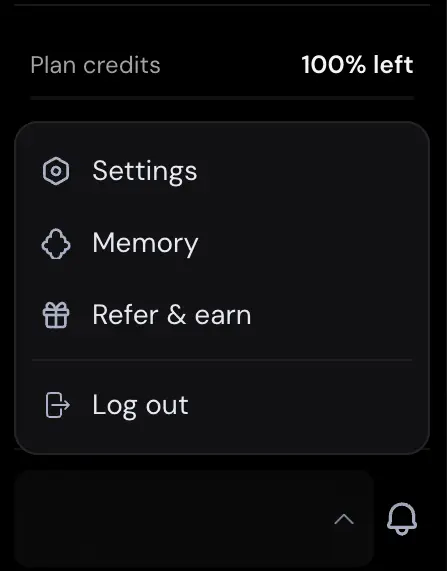
- In the bottom-left corner of the app, click your name.
- Click Settings.
- Open the Billing tab.
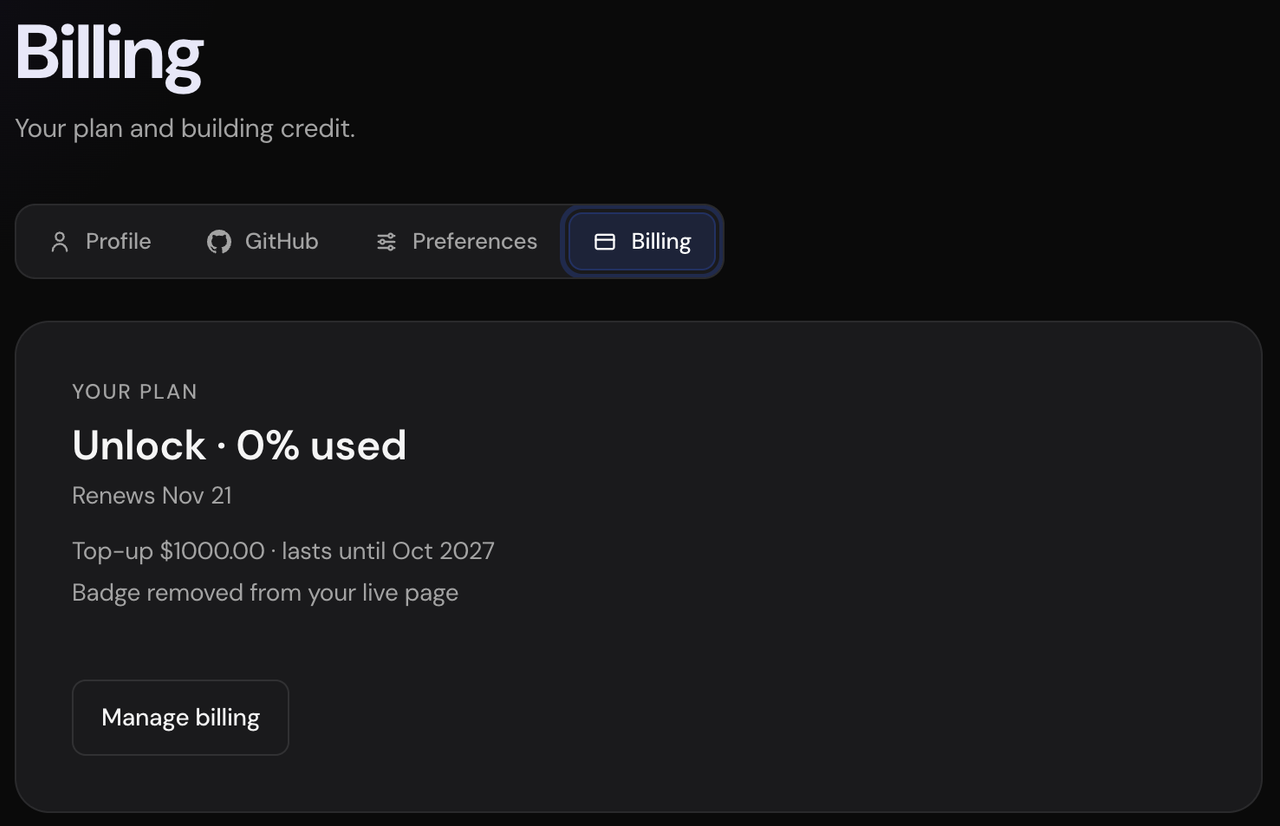
You'll see your plan, its renewal date, and a Manage billing button. (The Plans page has the same Manage billing button.)
2. Open the Stripe billing page
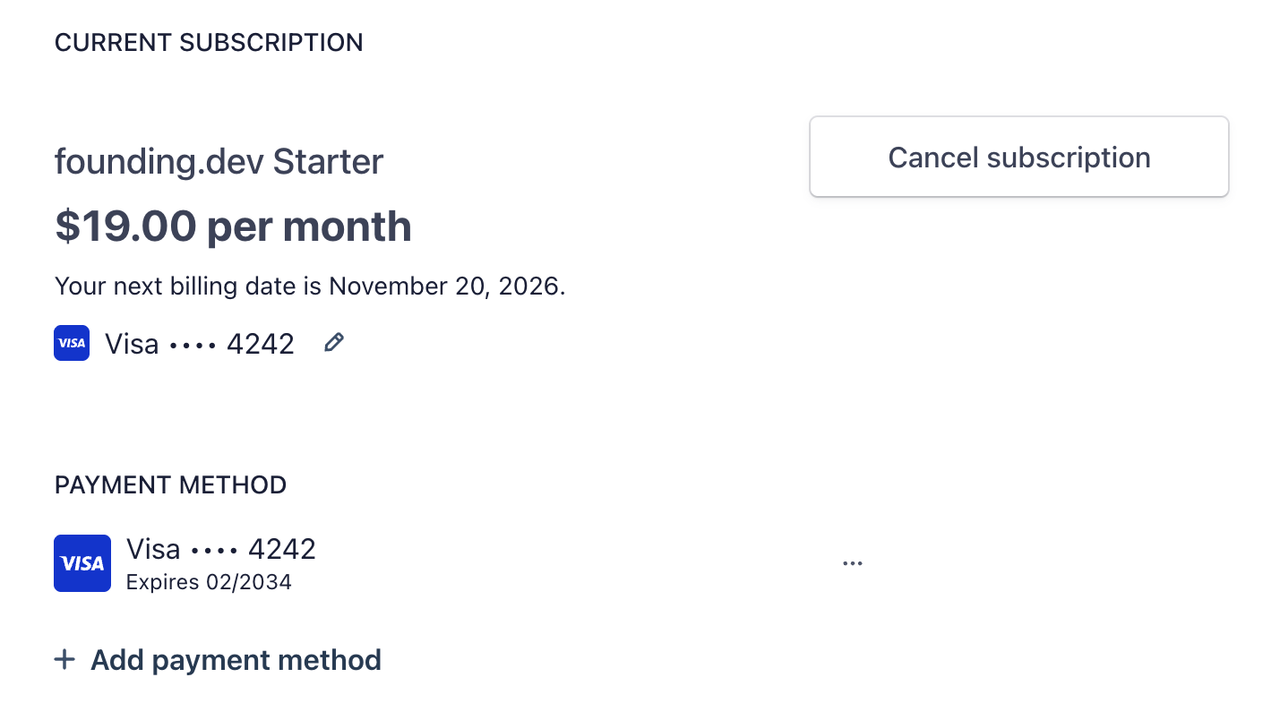
Click Manage billing. A Stripe page opens with your current subscription, your payment methods, billing details, and invoice history.
3. Delete the card
- Under Payment method, find the card you want to remove.
- Click the ⋯ menu to the right of it.
- Click Delete and confirm.
That's it. The card is gone from your account.
If "Delete" is greyed out
If Delete is greyed out, you'll see this message when you hover over it:
You can't delete this payment method because you have an active plan that uses it.
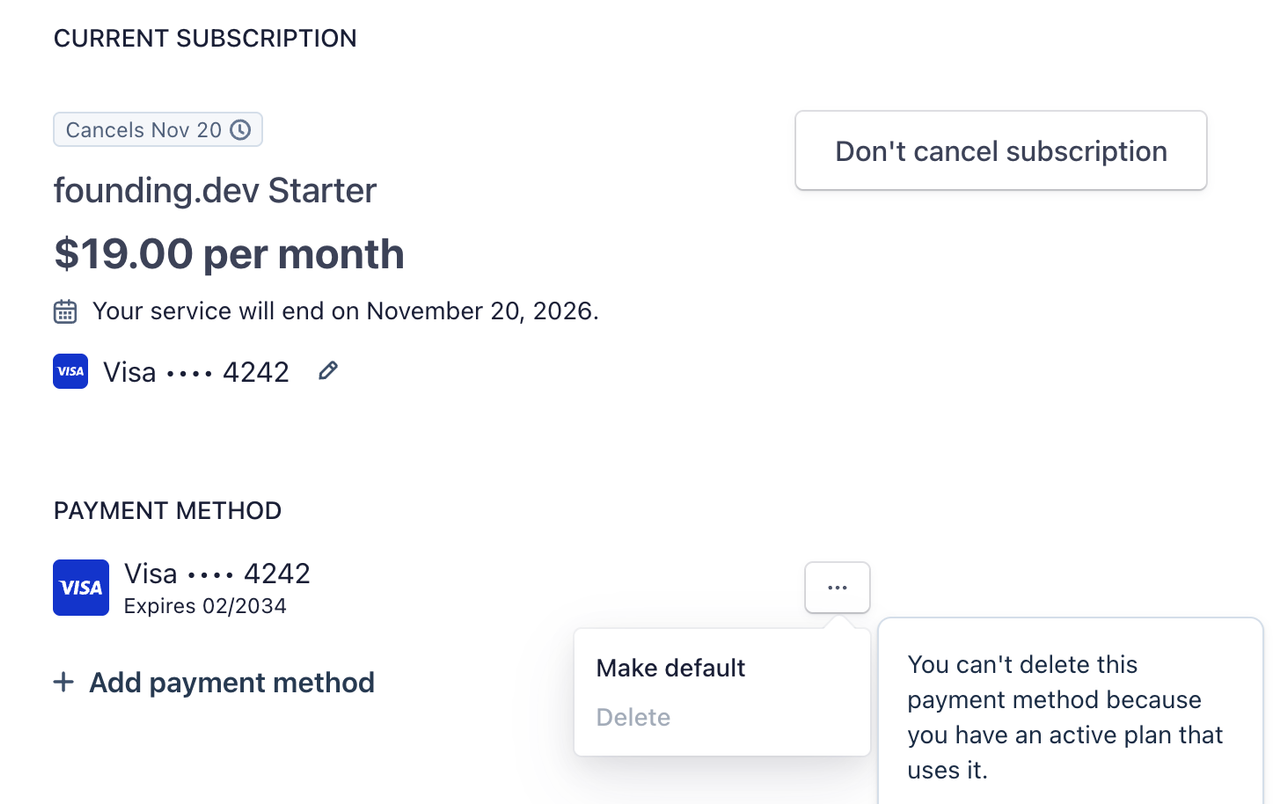
Your plan still needs a card to renew. Switch it to a different card first:
- Click + Add payment method and enter the new card.
- Click the ⋯ next to the new card and choose Make default.
- Under Current subscription, click the pencil icon next to the card and pick the new card. This makes sure your plan charges the new card.
- Go back to the old card, click ⋯, then Delete.
What about cancelling my plan?
Cancelling doesn't free up the card right away. When you click Cancel subscription, your plan keeps running until the end of the current billing period, so Stripe still treats the card as in use until then.
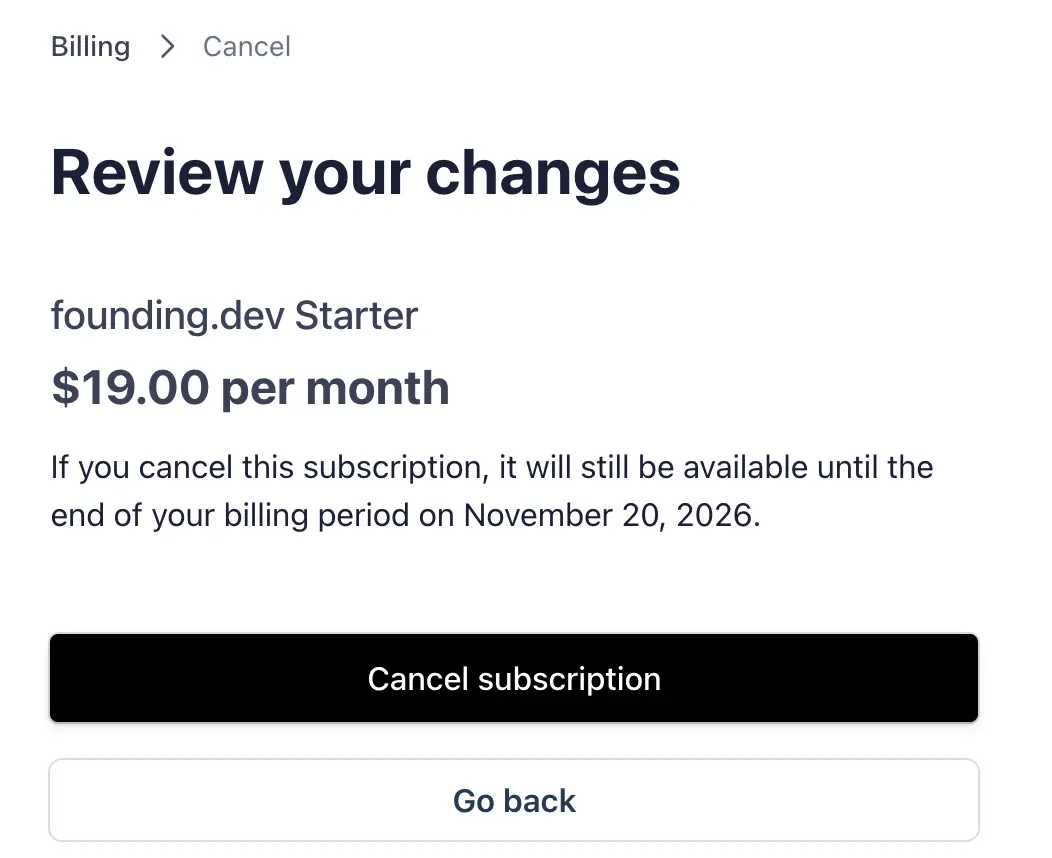
After you cancel, you'll see a Cancels [date] badge, and Delete stays greyed out until that date passes.
If you want the card gone now, use the steps above to switch to another card. If you're leaving for good, cancel your plan. You can delete the card once the billing period ends.
Still stuck?
Click Report a bug in the sidebar, or message us with the chat bubble in the bottom-right corner of the app.