Photoshop is a powerful tool, no doubt, but not everyone needs to pay so much for a professional editing suite just to make a quick design or touch up an image. Fortunately, there are plenty of free alternatives that can handle everything Photoshop does; simple edits, illustrations or more advanced creative work. Here are 6 of the best free Photoshop alternatives to try in 2026, compiled for beginners and experienced designers.
Why Look for a Free Photoshop Alternative in 2026?
The most common reason is straightforward: subscription fatigue. Adobe's Creative Cloud pricing has increased repeatedly, and for users who only need photo editing, not the full suite, the cost-to-value ratio has become hard to justify. But cost isn't the only driver.
Many users are also working on devices where installing heavy desktop software isn't practical, which is why browser-based editors have grown so quickly. Nobody wants to install a heavy duty desktop application, just to do a small background removal task.
How We Evaluated These Free Photoshop Alternatives
- Core editing capability: Does it handle layers, masks, selections, and adjustments at a level that replaces real Photoshop workflows?
- PSD compatibility: Can it open, edit, and export Photoshop files without destroying the layer structure?
- Learning curve: How long does it take someone with basic Photoshop familiarity to become productive?
- Performance and stability: Does it handle large files or complex compositions without crashing?
- Install requirements: Is it desktop-only, browser-based, or both?
GIMP: The Most Powerful Free Photoshop Alternative Overall
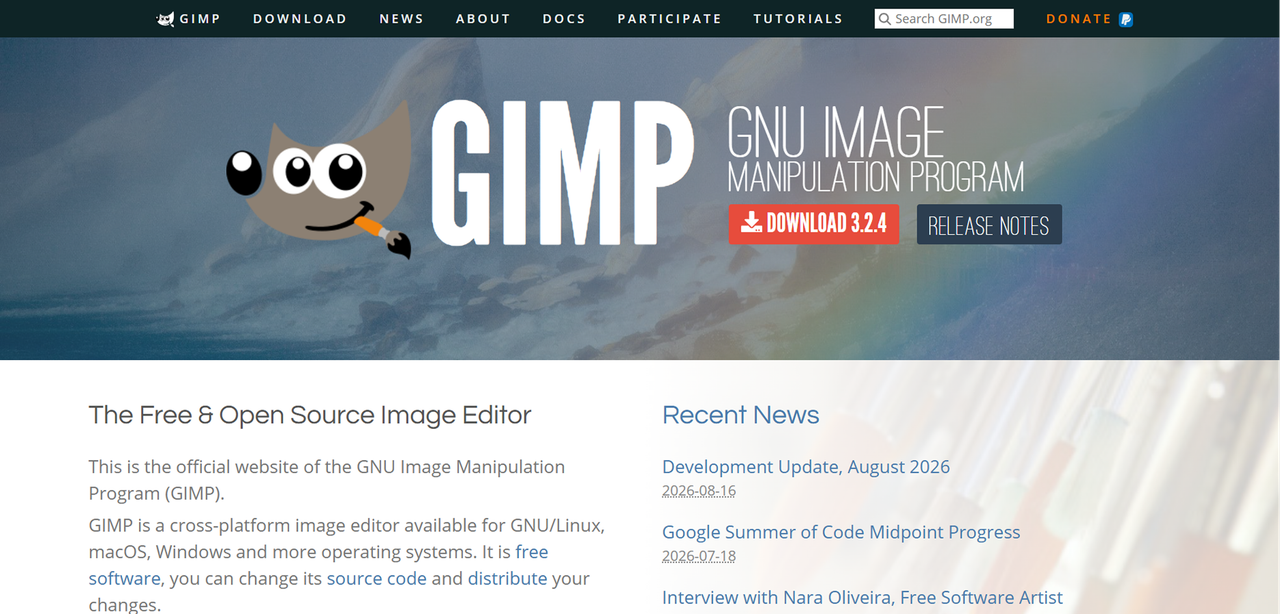
GIMP (GNU Image Manipulation Program) is the most fully featured free desktop image editor available. It is open-source, runs on Windows, macOS, and Linux, and has been actively developed for decades.
Key Features and What GIMP Does Well
GIMP supports full layer-based editing, including layer groups, blend modes, and non-destructive adjustment layers via its Script-Fu and plug-in ecosystem. Its selection tools, including fuzzy select, scissors select, and foreground extraction, are comparable to Photoshop's in most practical scenarios. The brush engine is customizable, and the tool supports high bit-depth editing (up to 32-bit per channel).
The plug-in library is extensive. G'MIC alone adds hundreds of filters and processing options. GIMP also handles batch processing through Script-Fu, which is useful for anyone who needs to resize or watermark large volumes of images without manual repetition. For print work, it supports CMYK output through plug-ins, though this is less seamless than in Photoshop.
Where GIMP Falls Short
GIMP's workspace defaults to a multi-window layout that feels dated compared to Photoshop's unified panel system. Single-window mode helps, but the overall UX reflects its open-source development history rather than a deliberate design philosophy.
PSD support exists but is imperfect. Most layer types import correctly, but smart objects, certain adjustment layers, and complex blend effects may not translate cleanly. Text handling is also weaker, GIMP's type engine lacks Photoshop's paragraph and character style controls.
Photopea: The Best Browser-Based Free Alternative to Photoshop
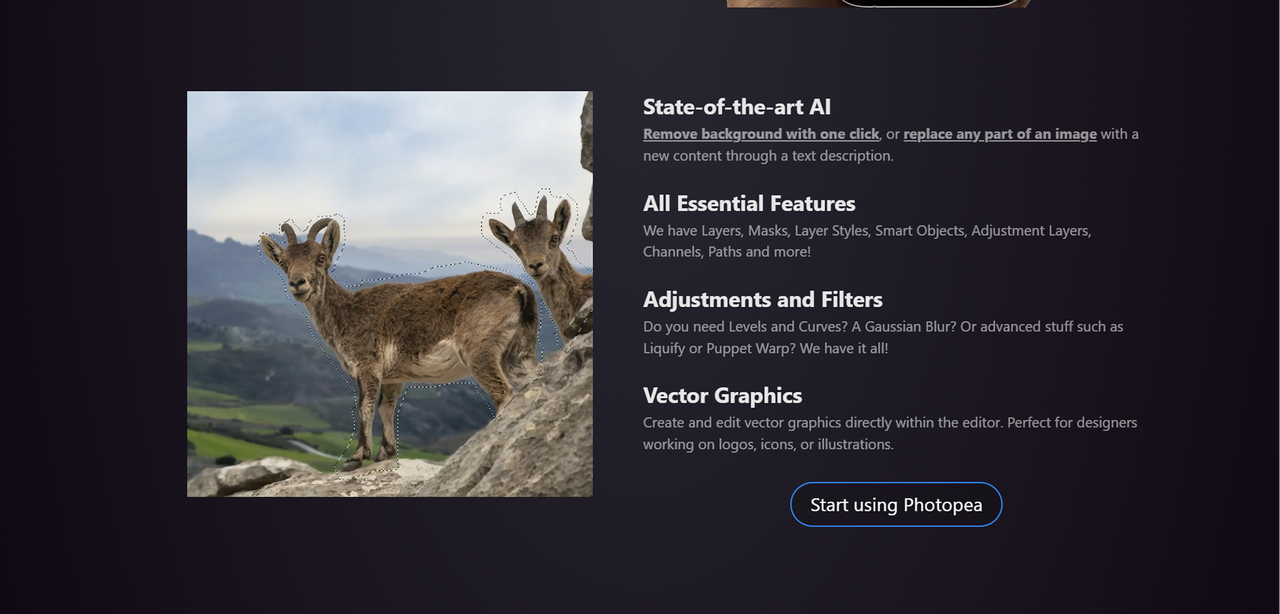
Photopea runs entirely in a browser with no installation required. It is the closest thing to a web-native Photoshop. Photopea's PSD compatibility is its defining strength. It reads and writes PSD files very comfortably, including smart objects, adjustment layers, layer effects, and most blend modes.
Layer support mirrors Photoshop's structure closely enough that users familiar with Photoshop's panel layout will orient quickly. It also supports XD, Sketch, PDF, and several other formats, making it useful for cross-format file handling beyond just PSD work.
Limitations of Working in a Browser
Browser-based editing introduces real constraints. Performance degrades on large files or complex compositions because the tool is limited by browser memory allocation rather than system RAM directly. Working on a 300 MB multi-layer PSD in a browser tab is a different experience than working on the same file in a native desktop application.
There is no offline mode. If your internet connection drops, your session is at risk. Auto-save behavior depends on browser storage, which is less reliable than a local file system.
Krita: The Top Choice for Digital Artists and Illustrators
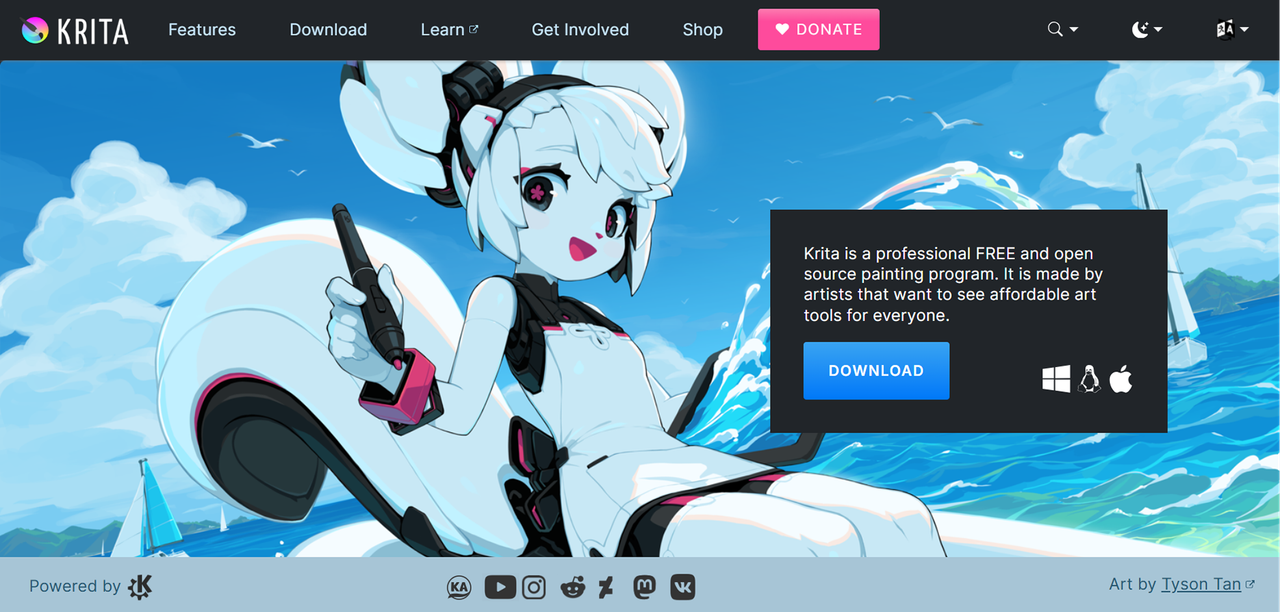
Krita is a free, open-source painting and illustration application built specifically for digital artists. It is purpose-built for drawing, painting, and concept art.
The brush engine is one of Krita's standout feature. It offers multiple brush types (pixel, smudge, color, filter, and more), each with deep customization options for texture, dynamics, and pressure sensitivity. Tablet support is first-class, with pressure, tilt, and rotation all handled correctly across major drawing tablets.
Krita supports layers, masks, and blending modes at a level appropriate for complex illustration work. It also includes animation tools for frame-by-frame work, which is genuinely useful for motion artists and animators who don't need a full video compositor. The interface is designed around drawing workflows rather than photo editing, so photographers looking for retouching tools will find it less intuitive.
Canva Free: The Easiest Photoshop Substitute for Non-Designers
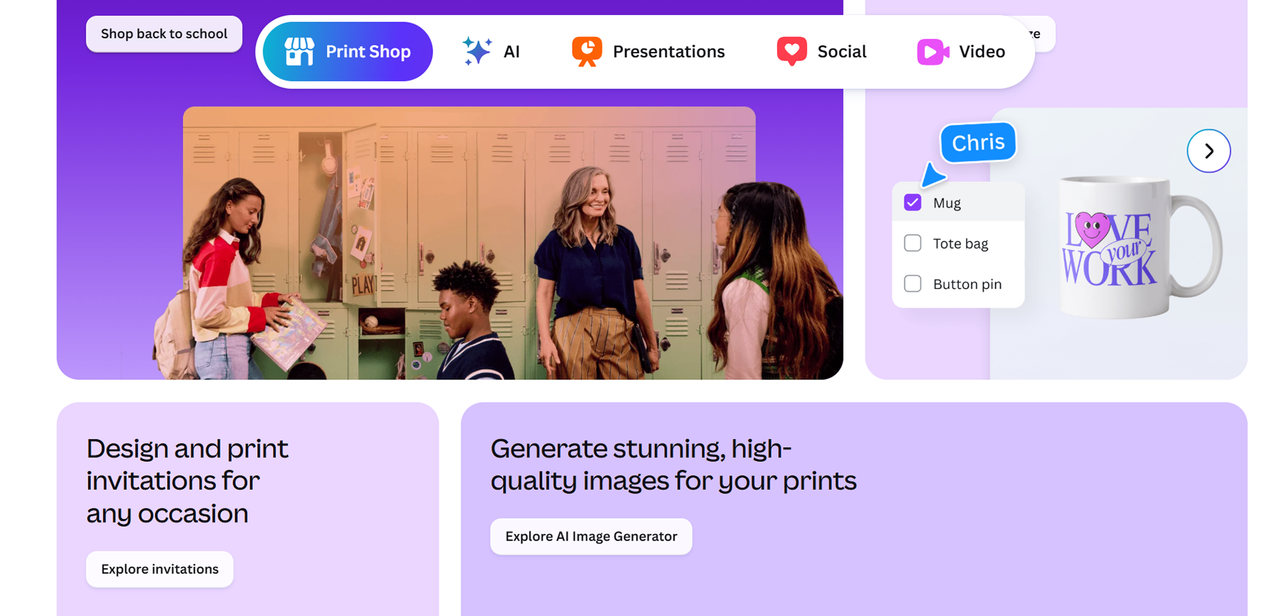
Canva's free tier is not a Photoshop replacement in the technical sense. It does not support layers in the way Photoshop does, and it is not built for pixel-level editing. What it does exceptionally well is give non-designers a fast path to polished visual output, social media graphics, presentations, marketing materials, and simple image compositions, without requiring any design knowledge.
Canva Free includes thousands of templates sized for every common social and print format, and the drag-and-drop editor makes customization accessible to anyone.
Where Canva Free hits its ceiling is in anything requiring precise image manipulation. Background removal, advanced masking, RAW processing, and complex compositing are either unavailable or locked behind the paid tier. It is also a browser-based tool, which means the same offline and performance caveats that apply to Photopea apply here, though Canva's files are typically far lighter.
Pixlr E: The Quickest Pick for Fast Online Editing
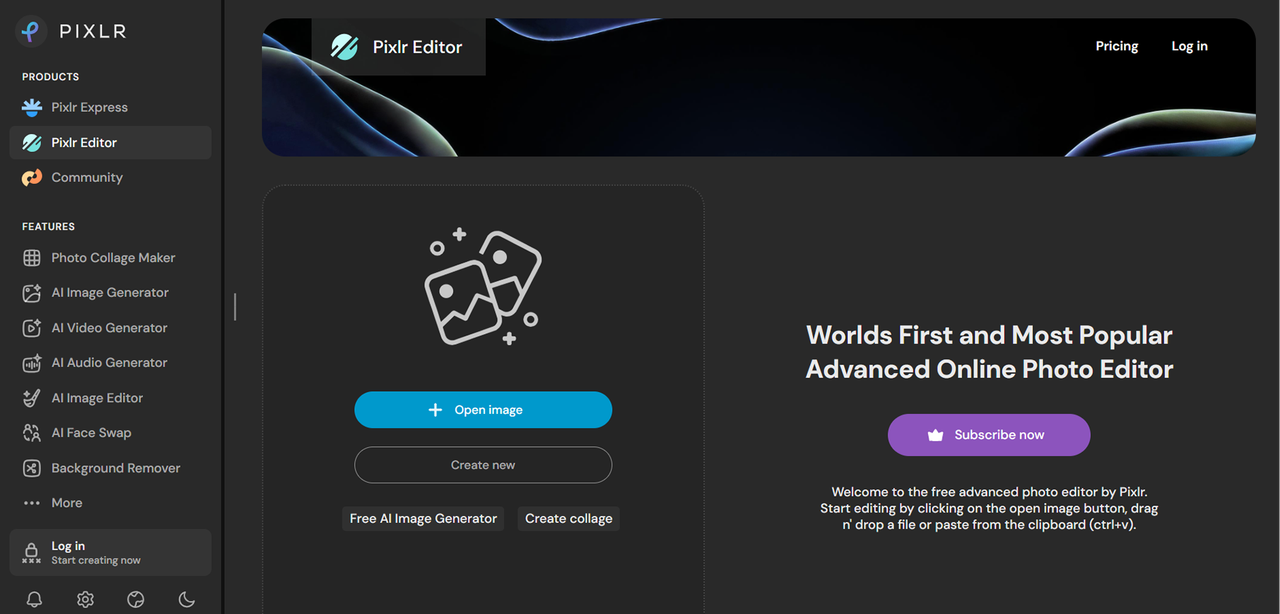
Pixlr E is also another browser-based photo editor that sits between Canva's simplicity and Photopea's complexity. It supports layers, blend modes, and a selection of retouching tools that cover most common photo editing tasks, cropping, color correction, spot healing, and basic compositing.
The interface is cleaner and more approachable than GIMP's, and the tool loads quickly in a browser. If you need to make fast edits to photos without opening a desktop application, Pixlr E is a practical choice. It includes AI-powered tools on its free tier, including background removal and cutout features, which reduces the manual selection work that slows down basic compositing tasks.
The free tier is ad-supported and includes some feature restrictions compared to the paid plans. For occasional editing tasks, the free version is sufficient.
Darktable: The Top Pick for RAW Photo Editing
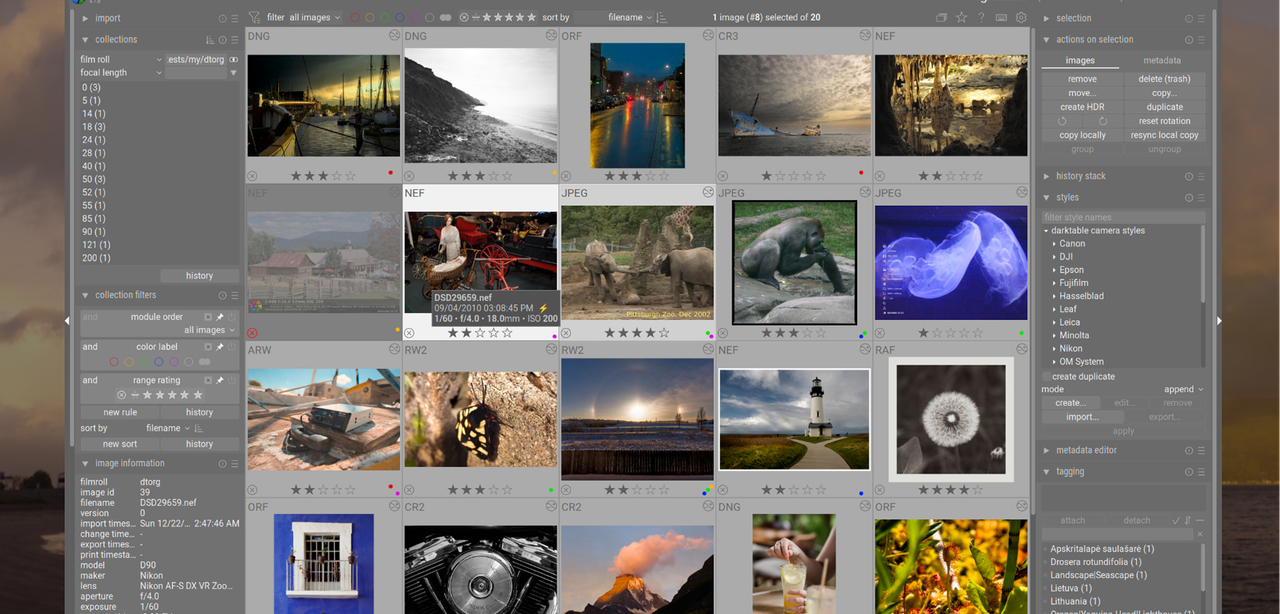
Darktable is a free, open-source RAW photo processor and digital darkroom. It is not a general-purpose image editor, it does not have a canvas, layers in the Photoshop sense, or painting tools. What it does is handle RAW file development at a level that competes with Lightroom and Capture One, which makes it the right tool for photographers whose primary need is processing camera files rather than compositing or illustration.
The non-destructive editing pipeline is Darktable's core architecture. Every adjustment, exposure, color grading, noise reduction, lens correction, is applied as a module in a processing pipeline, and the original RAW file is never modified.
Darktable supports a wide range of RAW formats across camera manufacturers and includes a library management system for organizing large photo collections. The learning curve is real: the module-based interface is not intuitive for users coming from Lightroom's slider-based approach.
Side-by-Side Comparison: Which Free Photoshop Alternative Should You Choose?
Comparison Table: Features at a Glance
Feature | GIMP | Photopea | Krita | Canva Free | Pixlr E | Darktable |
|---|---|---|---|---|---|---|
Cost | Free | Free (ad-supported) | Free | Free tier | Free tier | Free |
Desktop / Browser | Desktop | Browser | Desktop | Browser | Browser | Desktop |
Layer support | Full | Full | Full | Limited | Partial | No |
PSD compatibility | Partial | Strong | Limited | No | Partial | No |
RAW editing | Basic | No | No | No | No | Full |
Best for | Power users | PSD workflows | Digital artists | Non-designers | Quick edits | Photographers |
Learning curve | High | Medium | Medium | Low | Low | High |
Best Pick by Use Case
- You need the closest thing to Photoshop on a desktop: GIMP. Full feature set, extensible, and handles most professional workflows.
- You need to open or edit a PSD file without installing software: Photopea. Its PSD fidelity in a browser is unmatched among free tools.
- You draw, paint, or illustrate digitally: Krita. Built for this workflow specifically, with a brush engine that outperforms Photoshop's for painting tasks.
- You need to produce marketing or social graphics quickly: Canva Free. Templates and drag-and-drop editing get non-designers to finished output faster than any other tool here.
- You need fast photo edits in a browser without the complexity of Photopea: Pixlr E. Cleaner interface, AI tools on the free tier, and quick load times.
- You shoot RAW and need a Lightroom replacement: Darktable. Non-destructive RAW processing with no subscription required.
Tips for Getting the Most Out of Any Free Photoshop Alternative
Match the tool to the task before you start. Don't pick one tool and force every workflow through it. GIMP is not the right choice for RAW processing. Darktable is not the right choice for compositing. Spending time identifying which tool fits your actual task saves hours of frustration.
Learn keyboard shortcuts early. Every tool here has a shortcut system, and the productivity gap between a user who knows shortcuts and one who doesn't is significant. GIMP and Krita both allow custom shortcut mapping, which lets you replicate Photoshop's key bindings if muscle memory is an issue.
Use plug-ins and extensions. GIMP's G'MIC plug-in, Krita's brush packs, and Darktable's community presets all extend the base tool substantially. The free ecosystem around these applications is active, and most common capability gaps have a community solution.
Save in native formats during work, export at the end. GIMP's native format is XCF, Krita's is KRA. Saving in these formats preserves all layer and editing data. Export to PSD, PNG, or JPEG only when you need to share or deliver.
For browser tools, manage your tab environment. Photopea and Pixlr E both benefit from being run in a dedicated browser window with other tabs closed. Browser memory is shared across tabs, and complex edits in a crowded browser session will slow down noticeably.
Back up your files externally. Browser-based tools store working files in browser cache or cloud accounts, neither of which is as reliable as a local file system backup.
FAQ
Which free Photoshop alternative is closest to the real Photoshop experience?
GIMP is the closest match for desktop users who need a full feature set, layers, masks, selections, color correction, and a plug-in ecosystem. Photopea is the closest match for users who specifically need PSD compatibility and a familiar panel layout in a browser.
Can I open and edit PSD files with a free Photoshop alternative?
Yes, though with varying degrees of fidelity. Photopea handles PSD files most reliably among the tools covered here, preserving smart objects, adjustment layers, and layer effects in most cases. GIMP opens PSD files as well but may not render complex layer effects or smart objects correctly. Pixlr E offers partial PSD support for simpler files.
Are these free Photoshop alternatives safe to download and use?
GIMP, Krita, and Darktable are all open-source projects with long public development histories and large user communities. Download them from their official project websites to avoid modified or bundled versions. Photopea and Pixlr E run in a browser and require no download. Canva Free is a web application accessed through a browser account.
Which free alternative works best if I have no design experience?
Canva Free is the most accessible option for users with no design background. Its template library, drag-and-drop interface, and pre-sized format options remove most of the decisions that slow down beginners.
Can professional photographers use a free Photoshop alternative for RAW editing?
Yes. Darktable is specifically built for professional RAW photo processing and handles non-destructive editing, library management, and a wide range of RAW formats from major camera manufacturers. It is the most capable free option for photographers whose primary workflow is developing RAW files.